 Français
 English
Passwords and SFTP access.
The passwords of your mailboxes, of the file access and of the databases are all changed in the same place. That is also where you find the address to give your SFTP software, FileZilla for example.
1. Choose the access
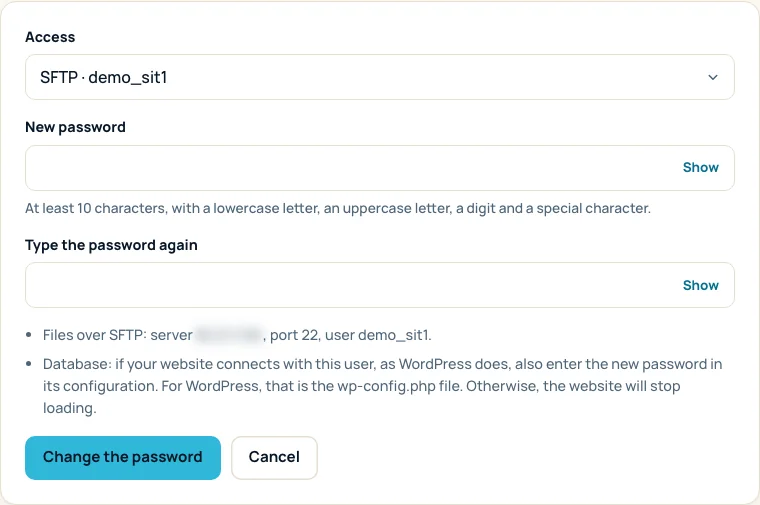
In your client area, open Hosting, click the site's name, then Change a password. The Access list groups the mailboxes, the accesses to the site files and the database users.
2. Enter the new password
It has at least 10 characters, with a lowercase letter, an uppercase letter, a digit and a special character. Type it twice, then click Change the password: it works straight away.
For a database user, also enter the new password in the website's configuration. For WordPress, that is the wp-config.php file. Otherwise, the website stops loading.
3. Connect over SFTP with FileZilla
First choose a password for the SFTP access, as above. Then fill in the bar at the top of FileZilla:
- Host: sftp:// followed by the server shown below the form.
- Username and Password: the user shown below the form and the password you have just chosen.
- Port: 22.
Click Quickconnect. On the first connection, FileZilla asks you to confirm the server's key: accept it. Your website's files are in the public_html folder.
Create a database
On the website screen, in the Databases card, click Create. Choose the database name and the password of its user, which has the same name. In your application, enter the server shown under the form, port 3306: the database only accepts connections from your website. phpMyAdmin opens from the same card, already signed in.
The password of your client area
That one is changed in My account. Forgotten it? Click Forgotten your password? on the sign-in page of your client area: a link is sent to you by email.