 Français
 English
Sell online with the website builder shop.
The Shop tab of the website builder adds product listings, a cart and online payment to your website. Your customers pay on the Stripe page and the money goes straight to your account.
- Add the shop
- Your products
- Connect your Stripe account
- Collection and delivery
- Terms of sale and returns
- Orders
- Frequently asked questions
1. Add the shop
In the website builder, open the Shop tab on the left, then Add a shop to the website. Two pages are created: a Shop page, placed in the menu, that shows your products, and a Cart page, outside the menu, where visitors check their order and pay. A cart icon appears at the top of every page, with the number of items chosen.
The Shop products section, in the Add tab, also places your products on another page, such as the home page.
2. Your products
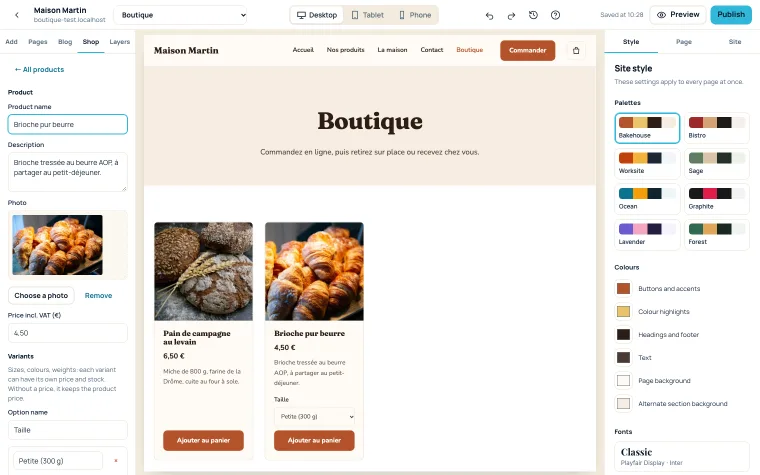
Add a product opens its listing: the name, a short description, a photo from your media library and the price including VAT. If the product comes in several sizes, colours or weights, name the option (for example Size) and add one variant for each, with its own price if needed.
Stock is counted per product, or per variant. Leave the box empty if you do not count it. It goes down with each paid order; at 0, the button on your website shows Sold out. Hide this product removes it from the website without deleting it.
Products, prices and photos go live when you publish the website. Stock changes immediately.
Each product on sale also has its own page, under the shop page, for example /shop/sourdough-loaf/. This is the page Google lists, and a link you share shows the product photo and name. Its address appears on the product sheet and stays the same after the first publication, even if you rename the product.
3. Connect your Stripe account
Payments go through your own Stripe account: your customers pay by card on the secure Stripe page, and Stripe pays you. Web-Minute never sees your customers' card details.
- In your Stripe dashboard, open Developers, then API keys, and copy the secret key (it starts with sk_live_).
- In the Shop tab, Payment section, paste it and click Connect my account. The key is checked with Stripe, then stored encrypted: it is never shown in full again.
To try your shop without real payments, paste the test key (sk_test_) first and pay with the Stripe test card, 4242 4242 4242 4242. Test orders are marked “test” everywhere. Then replace the key with your live key.
4. Collection and delivery
Tick the options you offer. Collect in store: enter the address and opening hours; they appear in the cart and in the confirmation email. Home delivery: enter the cost including VAT, the order amount from which delivery is free if you have one, and the delivery time shown. Delivery is offered in France; a box extends it to the European Union, at the same cost.
Your customers see the cart in the language of your website: quantities, the delivery option, the total including VAT, then the order form.
5. Terms of sale and returns
Selling to consumers requires terms and conditions of sale and the 14-day right of withdrawal. In the Shop tab, Terms of sale section, enter your consumer mediator, then create the Terms and conditions of sale and Returns and refunds pages. They use your legal notice, your delivery settings and the withdrawal form, in the language chosen for your website. Read them through, complete them if your business requires it, then publish.
Customers tick the terms of sale before paying, and both pages are linked at the bottom of every page.
6. Orders
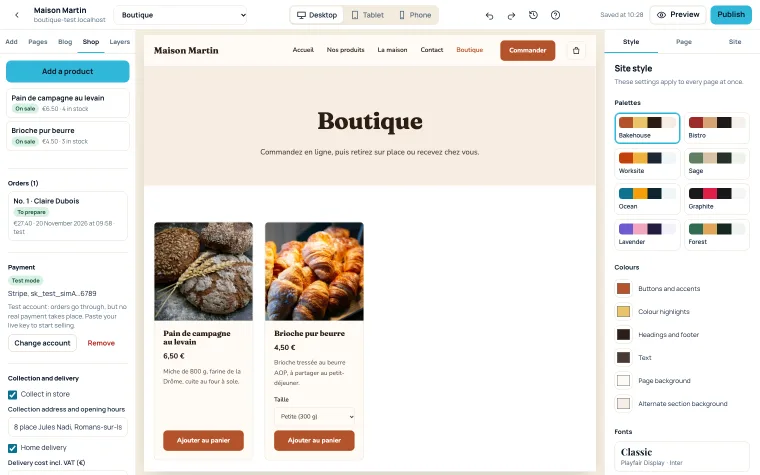
For each paid order, your customer receives a confirmation email in your shop's name, in the language of your website, and you receive the details: items, contact details, delivery and payment reference. All orders are also listed in the Shop tab.
Open an order, then Mark as shipped (or Mark as ready for a collection): your customer receives an email. Refunds are made from your Stripe dashboard; then mark the order as refunded.
Frequently asked questions
Who collects the money from sales?
You do, directly in your Stripe account. Stripe charges its own fees on each payment, under your contract with Stripe.
A customer paid but I did not receive an email.
The order is in the Shop tab. Check the address that receives orders, in the Terms of sale section, then your spam folder.
The customer closed the page before the payment finished.
If the payment went through, the order is confirmed within a few minutes and both emails are sent. Otherwise nothing is charged and the cart stays in their browser.
I change a price: do orders in progress change?
No. The price of an order is the one online when it was placed. A new price counts once the website is published.
A question that is not here: write to us from your client area.