 Français
 English
Restore a backup.
Your site and your mailboxes are backed up every night, and each backup is kept 60 days, whatever the plan. After an update that went wrong or a file deleted by mistake, you put the site back the way it was in two clicks.
It all happens on the site's screen: in your client area, open Hosting, click the site's name, then Restore a backup.
1. Pick the date and what to bring back
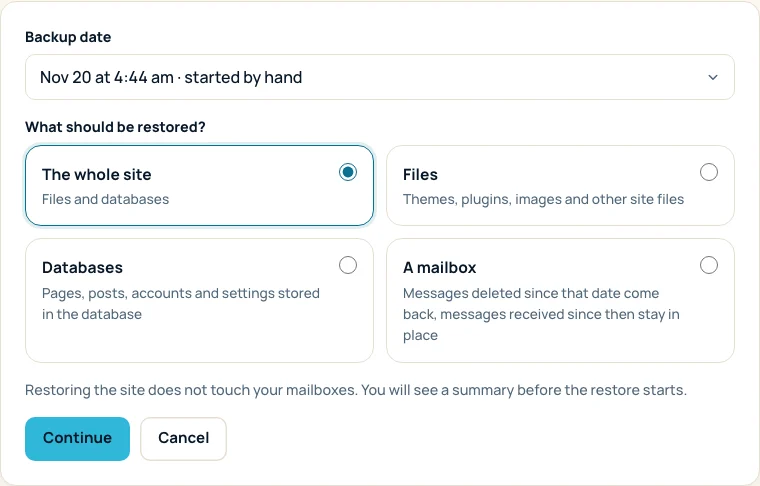
- The whole site: files and databases come back together. The right choice after an update that went wrong.
- Files: themes, plugins, images. Your recent posts and orders stay in place.
- Databases: pages, posts, accounts and settings, without touching the files.
- A mailbox: you pick the address at the next step. Messages deleted since that date come back, messages received since then stay in place.
Restoring the site does not touch your mailboxes: messages received since the backup stay where they are.
2. Check, then restore
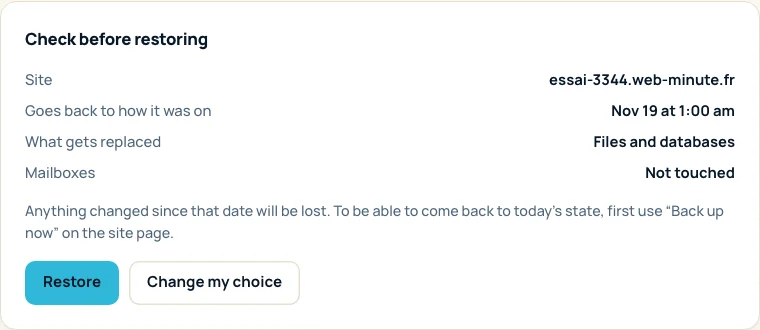
Everything that changed since that date is replaced. The site is back to the chosen state within a few minutes.
Before a big change
A WordPress update, a new theme, a shop plugin: first click Back up now on the site's screen, it is added to the nightly ones. With the Pro and Agence plans, the Staging copy does even better: you try the change on a copy of the site, then put it live if all is well.
Not sure which date to pick? Open a ticket from your client area before restoring: we will look at it with you.