 Français
 English
Work on a staging copy.
A staging copy holds your whole website, files and databases, at a separate address that search engines do not see. You try an update, a plugin or a new theme on it, then put it live if everything works. It comes with the Pro and Agence plans.
1. Create the copy
In your client area, open Hosting, click the site's name, then Create a staging copy.
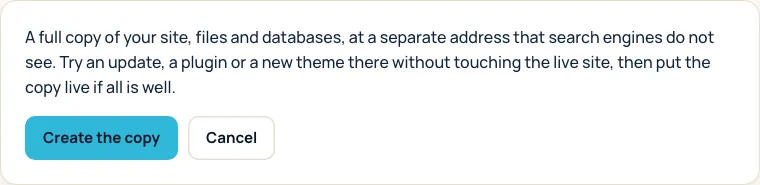
It is ready in about five minutes. Its address starts with test- and ends with .web-m.net: you find it on the same screen, with the View the copy button that opens it in a new tab.
2. Run your tests
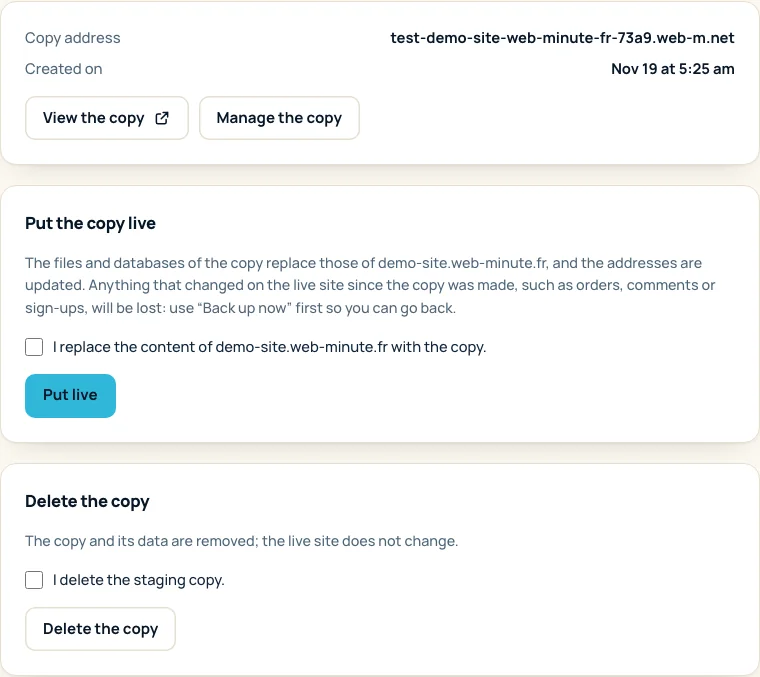
What you change on the copy stays on the copy: the live website and its visitors see nothing. Manage the copy opens its own screen in your client area.
3. Put the copy live
When you are happy with the result, tick the box in the Put the copy live block, then click Put live. Your website shows the content of the copy after one or two minutes.
Anything that changed on the live website since the copy was created, such as an order or a comment, is replaced as well. Click Back up now on the site's screen first: you can then restore that backup if needed.
Delete the copy
Tick the box in the Delete the copy block, then click the button of the same name. The copy and its data are removed, and the live website does not change. A website has one copy at a time: to start again from its current state, delete the old copy, then create a new one.