 Français
 English
Read your email in webmail.
Webmail opens your mailboxes in the browser, from any computer. It works as soon as the mailbox is created, even before your domain is connected to your hosting.
1. Open webmail
In your client area, open Hosting, click the site's name, then Webmail at the top of the screen. The button appears once the website has a mailbox: otherwise, create one first.
Once your domain is connected, the button opens the mailbox directly if the website has only one. With several mailboxes, it opens the webmail sign-in page, at mail.your-domain.com.
2. Before your domain is connected
The button takes you to the Web-Minute webmail, at webmail.web-minute.fr. Click Continue to Webmail, then sign in with the full address of the mailbox and its password.
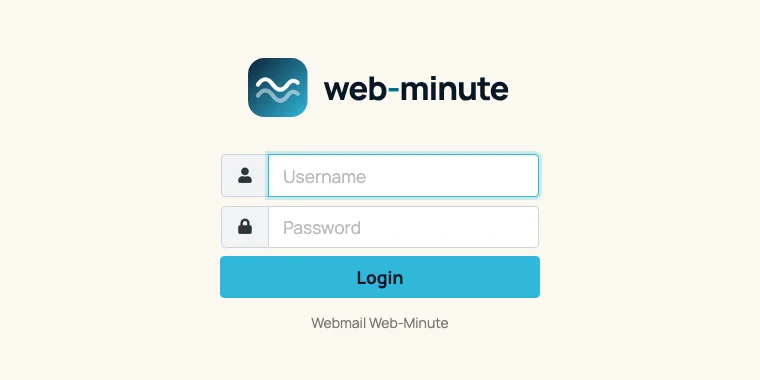
Messages sent to your domain reach the mailbox once the domain is connected.
Outlook, Thunderbird or your phone
Add an IMAP account with these settings, which work once your domain is connected:
- Incoming IMAP server: mail.your-domain.com, port 993, with SSL/TLS.
- Outgoing SMTP server: the same, port 465 with SSL/TLS or port 587 with STARTTLS.
- Username: the full address of the mailbox, with its password.
Step-by-step instructions for iPhone, Android and Outlook are on the page Your email on your phone and in Outlook.
These settings are also shown for each mailbox in Advanced settings: Emails tab, three-dot menu at the end of the mailbox row, then Manage and Email client settings. A mailbox password is changed from the site's screen, with Change a password.